
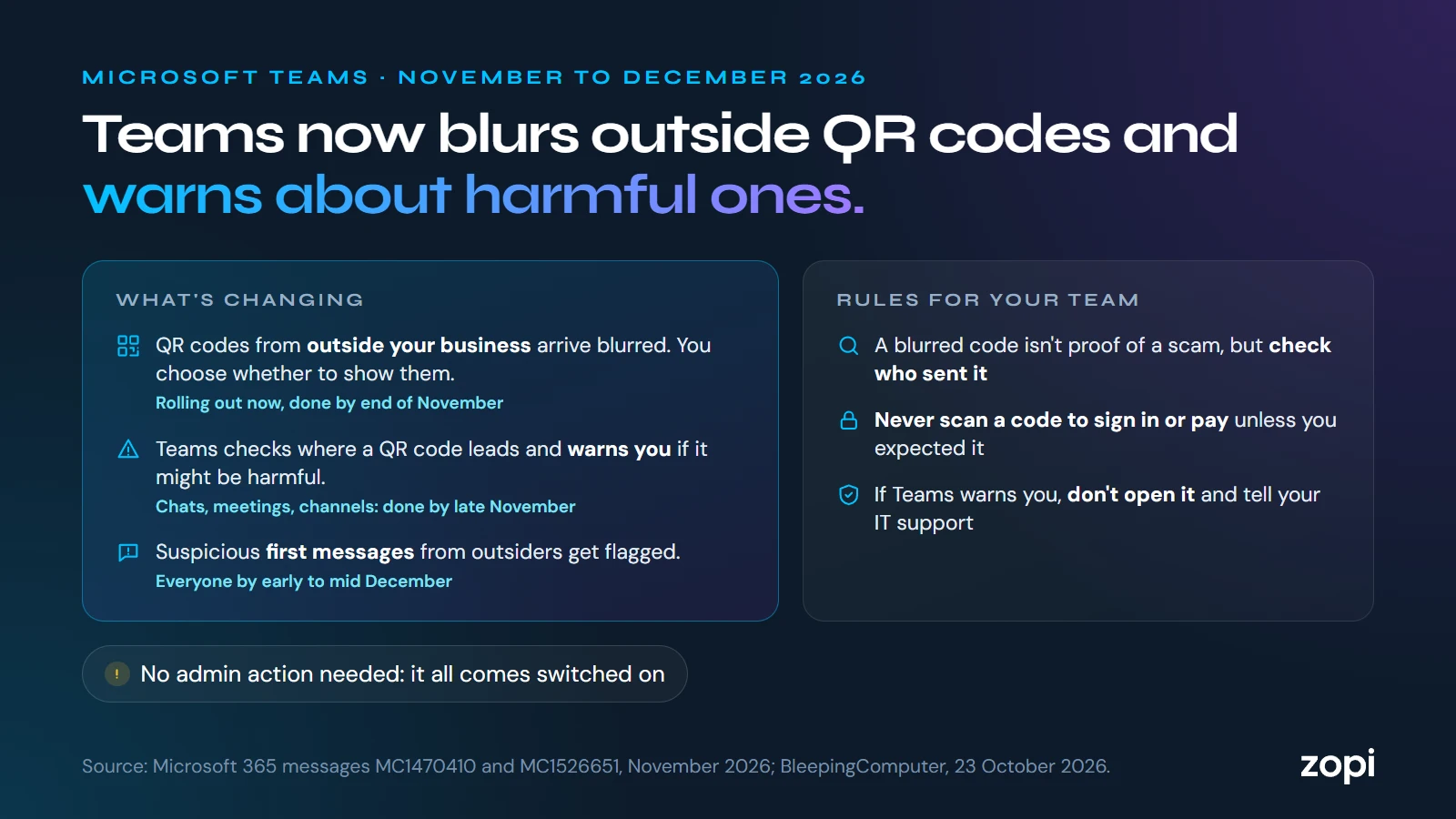
Microsoft is adding new phishing protection to Teams, and most of it is reaching businesses this month. Pictures with a QR code in them, sent by someone outside your business, now arrive blurred until you choose to show them. Teams also checks where a QR code leads and warns you if it looks harmful, and early next month it starts flagging suspicious first messages from outsiders. Nobody has to switch anything on, but your team should know what they'll see, so a blurred picture or a warning doesn't catch them out.
Why QR codes are a problem
A QR code hides where a link goes until you scan it. That makes it handy for criminals: a picture of a code can slip past the checks that look for dodgy links in a message, and people often scan it with their own phone, away from the protection on their work computer. Microsoft's new Teams checks are aimed at exactly this.
What's changing in Teams
- QR codes from outsiders are blurred: if someone outside your business sends a picture with a QR code in it, Teams blurs it. You can show it if you trust the sender. Microsoft is clear that the blur doesn't mean the code is harmful, only that it came from outside. This is rolling out on computers, phones and the web, and should finish by the end of November;
- Harmful QR codes get a warning: Teams now reads the code and checks where it leads. If it looks like phishing or fraud, you'll see "This message contains a link that might be harmful". This covers one-to-one chats, group chats, meeting chats and channels, and messages from colleagues as well as outsiders. It should be everywhere by late November;
- Suspicious first messages get flagged: Teams is starting to use AI to spot scams and impersonation in the first message from someone outside your business, even when there's no link or file. BleepingComputer reports this reaches everyone in early to mid December.
Do you need to do anything?
No admin action is needed for any of these. They come switched on. The QR code checks use Teams' existing protection against harmful links, which is on unless someone has turned it off. If you look after your own Microsoft 365, you can check it in the Teams admin centre, under Settings and policies, then Messaging safety.
What to tell your team
- A blurred QR code isn't proof of a scam, but check who sent it before you show or scan it. If you weren't expecting it, ask the sender another way, like a phone call;
- Never scan a code to sign in, reset a password or pay unless you expected it and know who it's from;
- If Teams warns you about a message, don't open the link. Tell your IT support, even if you've already clicked;
- Be careful with new outside contacts. If someone you don't know starts a chat, check their name and email address before you accept, and block them if anything looks wrong.
How Zopi can help
If Zopi looks after your Microsoft 365, we'll make sure Teams' link protection is switched on and can give your team a quick heads-up about what they'll see. Not with Zopi yet? Our managed IT support includes Microsoft 365 security, and a real person to call when a message looks wrong. Call us on 0204 502 1288 for a free, no-obligation chat.
Sources
- Microsoft Teams: QR code protection for messages from external users (MC1470410), Microsoft 365 message centre, updated 3 November 2026
- Microsoft Teams: Malicious QR code detection in messages (MC1526651), Microsoft 365 message centre, updated 10 November 2026
- Microsoft Teams to get AI-powered, context-aware phishing detection, BleepingComputer, 23 October 2026
- Prevent spam or phishing attempts from external chats in Microsoft Teams, Microsoft Support