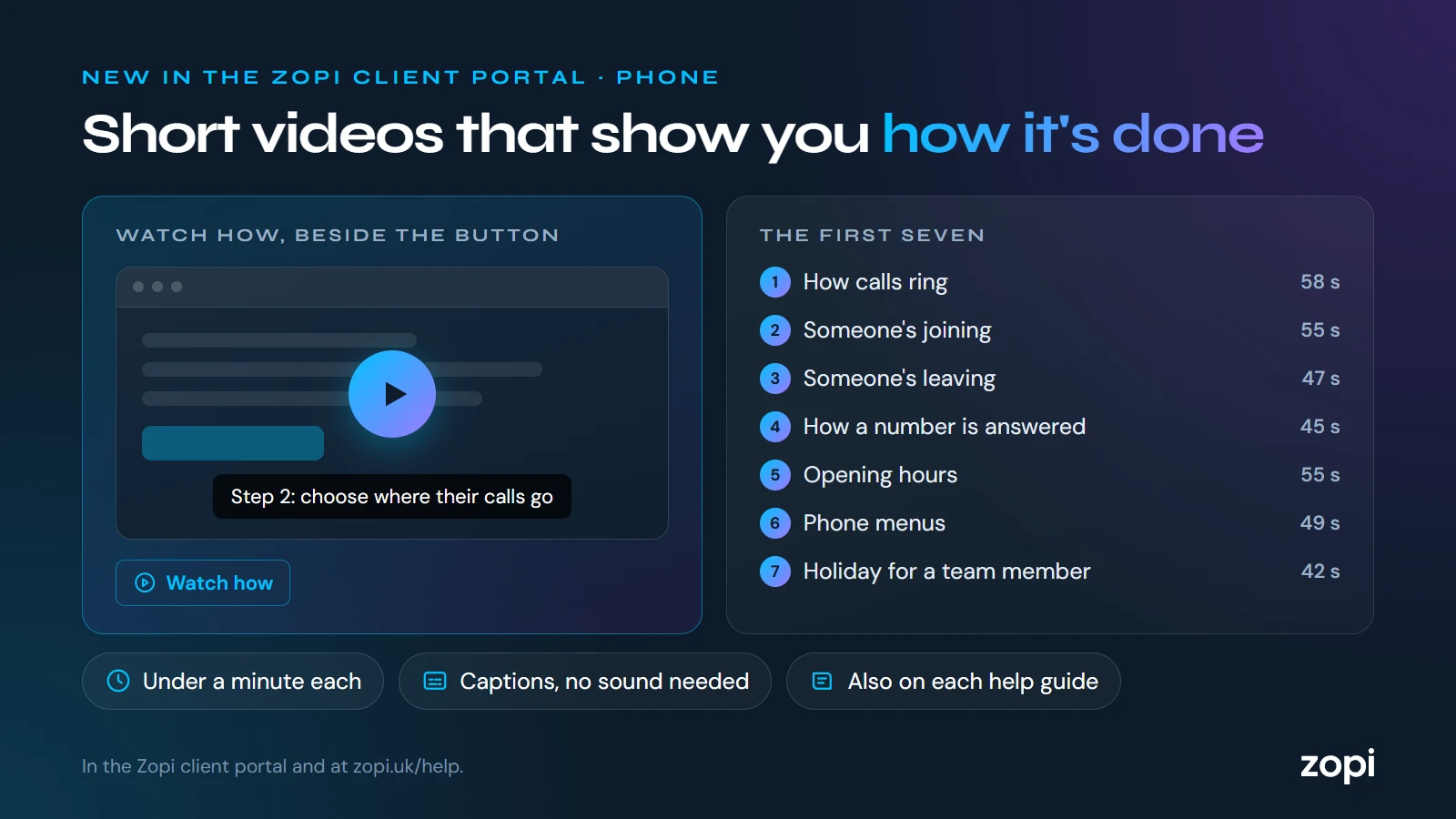

If your phones are with Zopi, two of the jobs people ask us about most can now be done in the client portal, one step at a time: setting up a "press 1 for sales" phone menu, and choosing how each of your numbers is answered. Each walkthrough asks plain questions, shows you the result, and only changes anything when you say so.
Build a phone menu
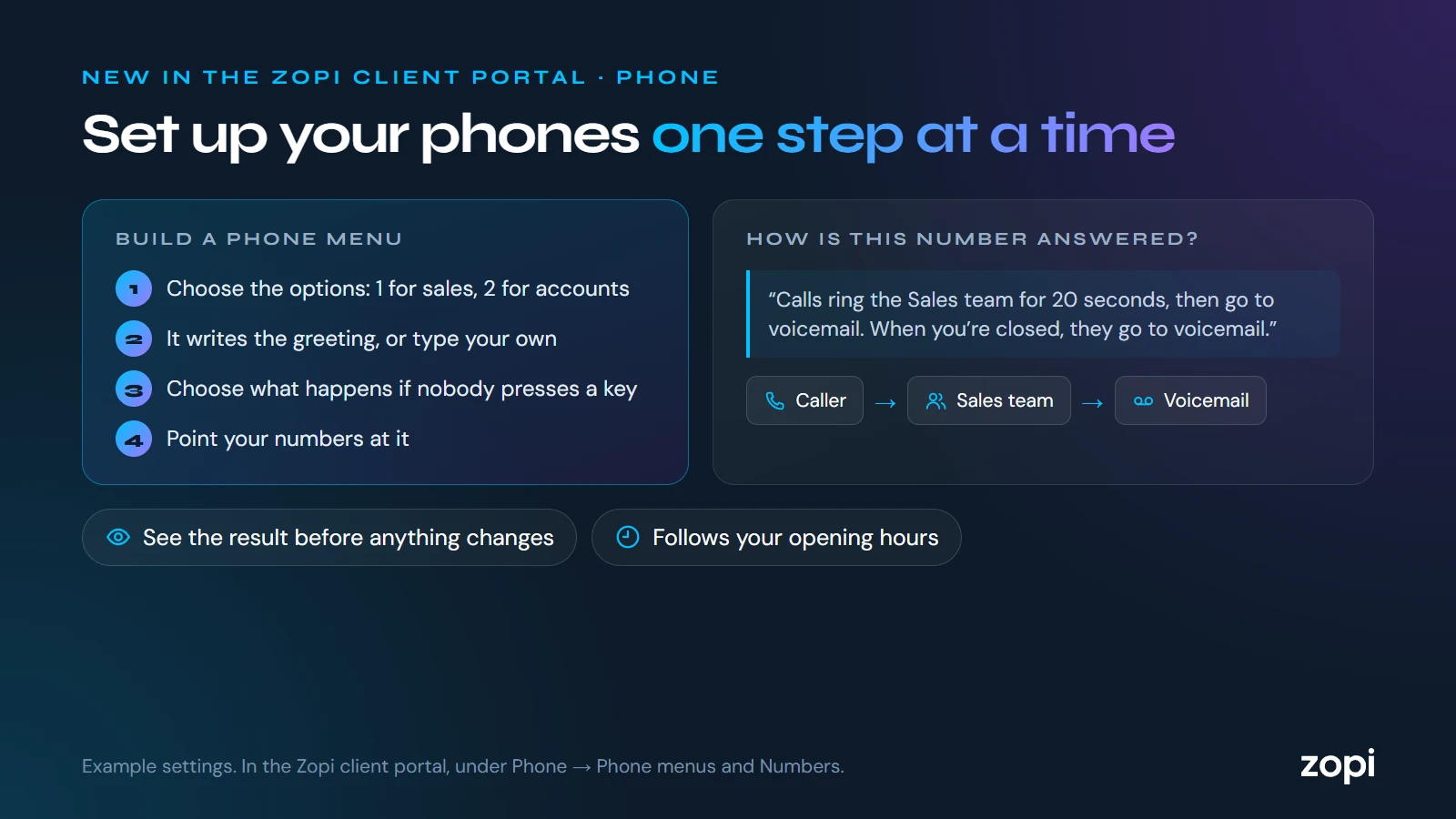
Go to Phone menus and press Build a phone menu. It asks:
- What choices callers should have, like 1 for sales and 2 for accounts, and who or where each one goes to.
- What the greeting says. It writes one for you from your choices, or you can type your own and the phone system reads it out. You can still upload a recording of your own if you prefer.
- What happens if a caller presses nothing, for example ringing the office anyway.
- Which numbers should play the menu.
Already have a menu? Press Step by step… on it to change it the same way.
How is this number answered?
Under Numbers, each of your numbers now says in one sentence what happens to a call. To change it, press How it's answered… and choose:
- Who answers: one person, a team or a phone menu. Choose a team and it rings everyone at once, in turns, or one after another. If you don't have a team yet, it makes one for you.
- How long it rings before trying something else.
- Where the call goes if nobody answers, such as voicemail or another number.
- Where calls go when you're closed, using your opening hours.
A picture shows the whole journey of a call before anything changes, so you can check it makes sense first.
How to find it
Sign in to the client portal and look under Phone. Our guides to phone menus and your phone numbers go through each step. Prefer us to do it? Raise a support request or call us on 0204 502 1288. Not with Zopi for your phones yet? Have a look at our business phone systems.